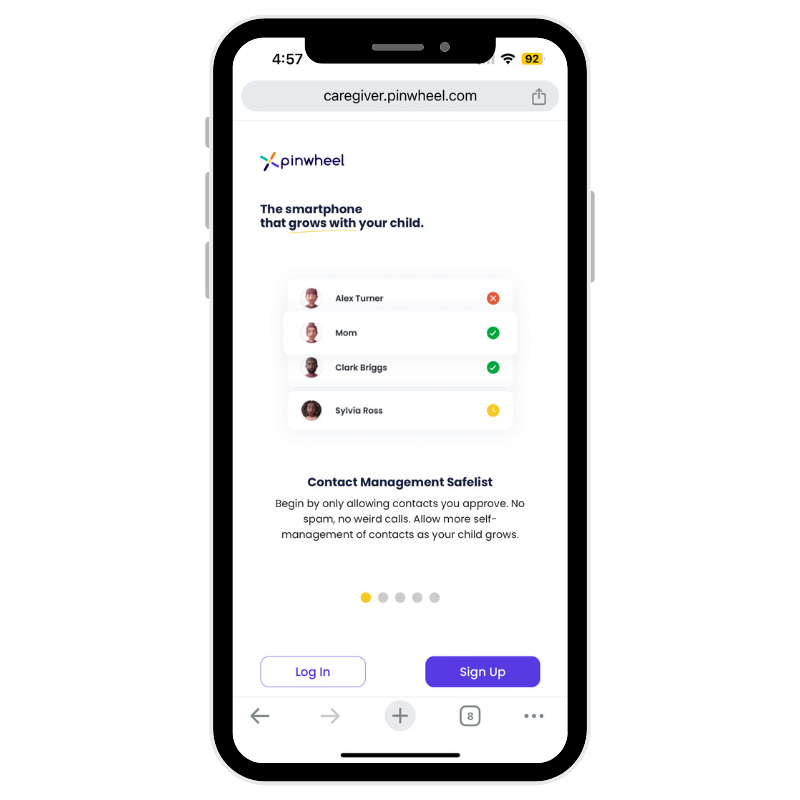

1. Download the Caregiver Portal app
The Caregiver Portal is where you approve contacts and set schedules for the Pinwheel Home. Click below to download the app from the Apple App Store or Google Play Store.
As part of setting up your account you'll choose a calling plan. The Pinwheel Circle plan allows your child to make or receive calls only from other Pinwheel Homes (and 911 emergency services). The Friends and Family and Unlimited plans allow your child to dial external numbers also.

2. Plug in your Pinwheel Home
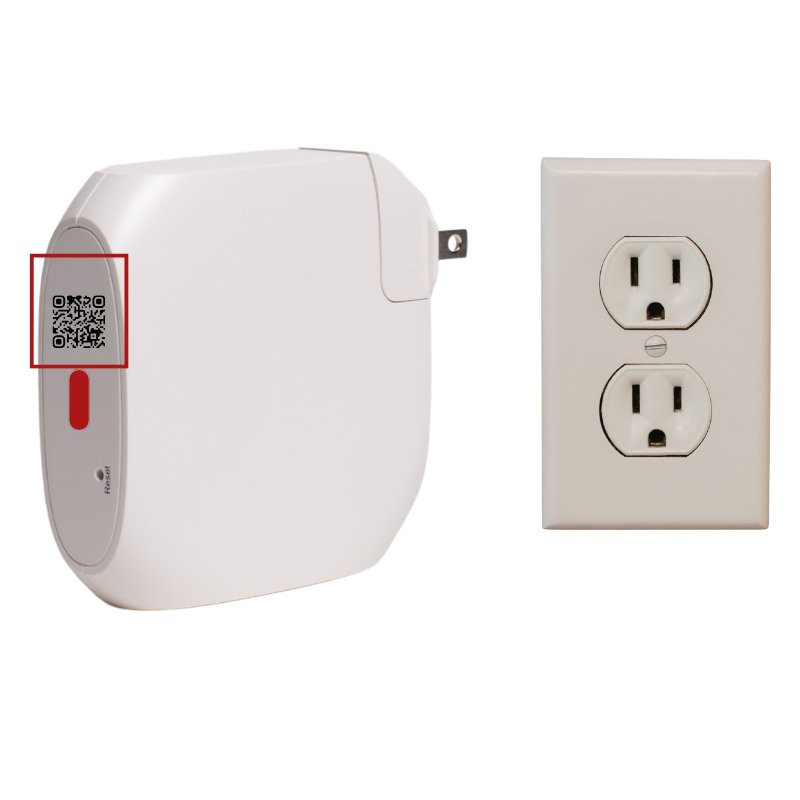
Plug the adapter into the wall where it's easy to reach. You'll need to scan the QR code on the front in the next step. When you plug in the adapter, the light will flash red. When the light turns solid red, it's ready to connect.
3. Connect your Wifi
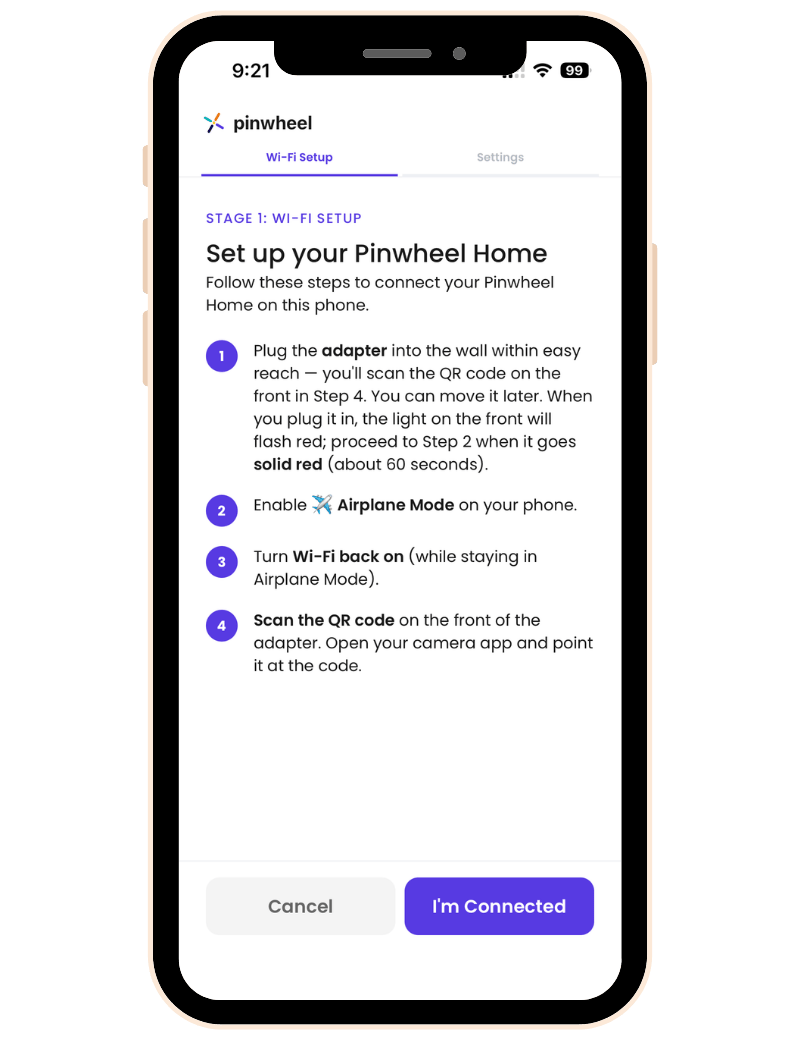
The Wizard in the Caregiver Portal app will walk you through connecting your WiFi, setting quiet hours and other settings. Just follow the steps on the screen.
When your adapter is connected, the light on the front will turn green.
Put your phone in Airplane Mode
Turn the WiFi on (while staying in Airplane Mode)
Scan the QR code on the front of the adapter
4. Plug in the phone
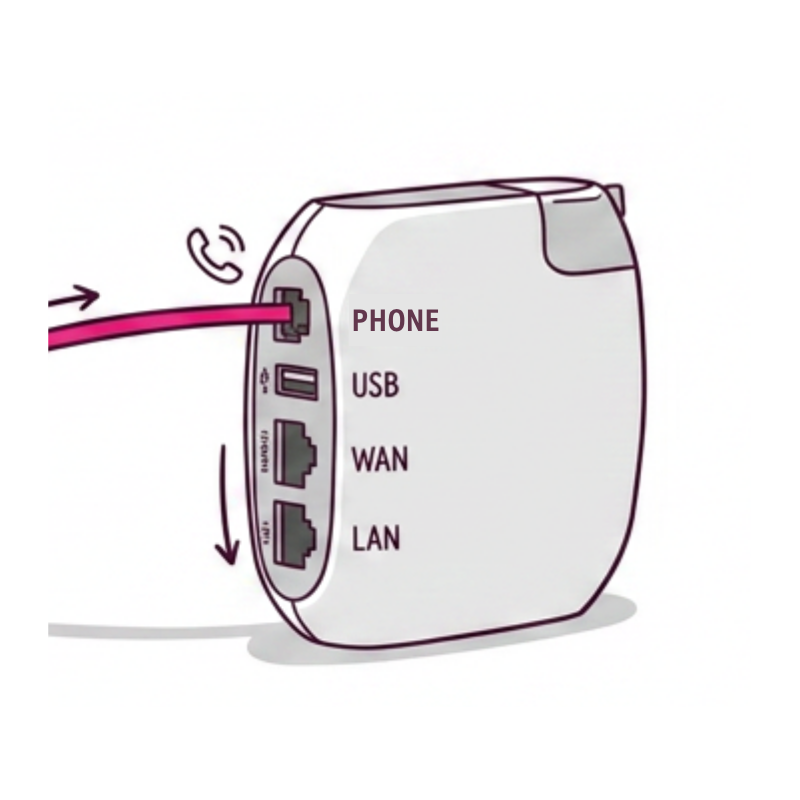
If it's not done already, connect the handset to the base of the phone with the curly cord. Use the non-curly cord to plug the phone into the adapter slot labeled Phone. Once your Pinwheel Home is connected to your Wifi, you can unplug it and move it to another location in your house.
5. Invite your friends
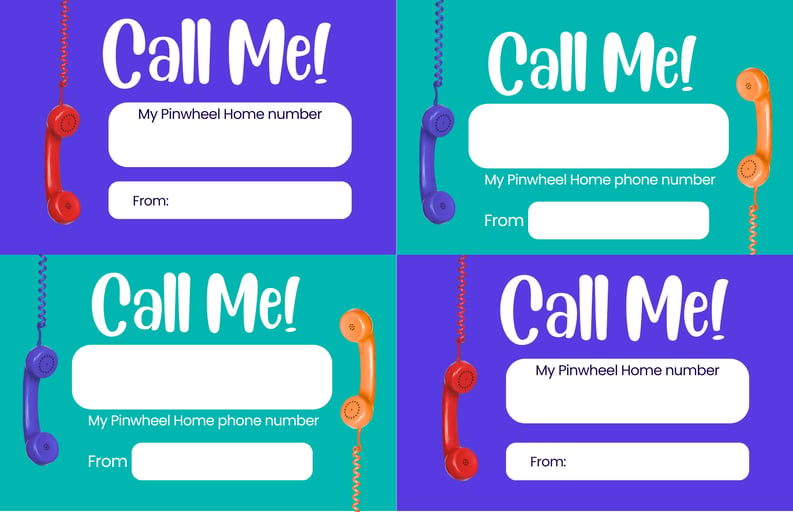
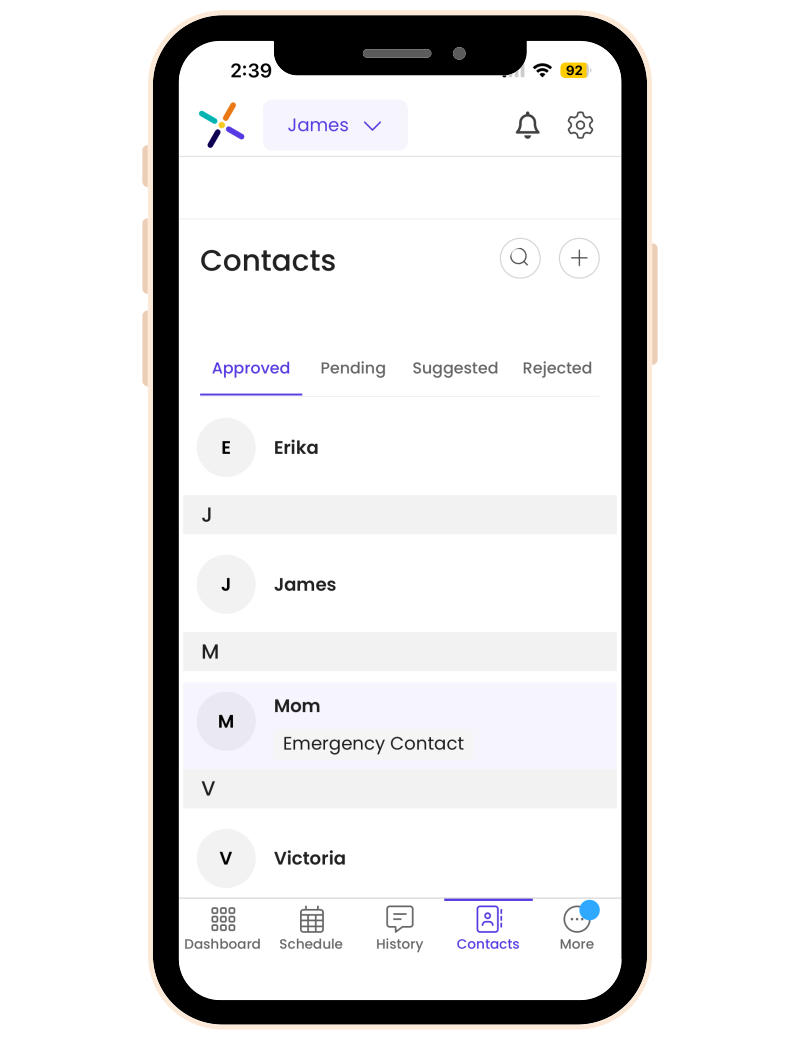
Add approved contacts according to the plan you chose in Step 1. Hand out your Calling Cards to share your number with your friends, and write down important numbers in your phone book!
If you run out of Calling Cards, you can print more from the Caregiver Portal.
6. Decorate!
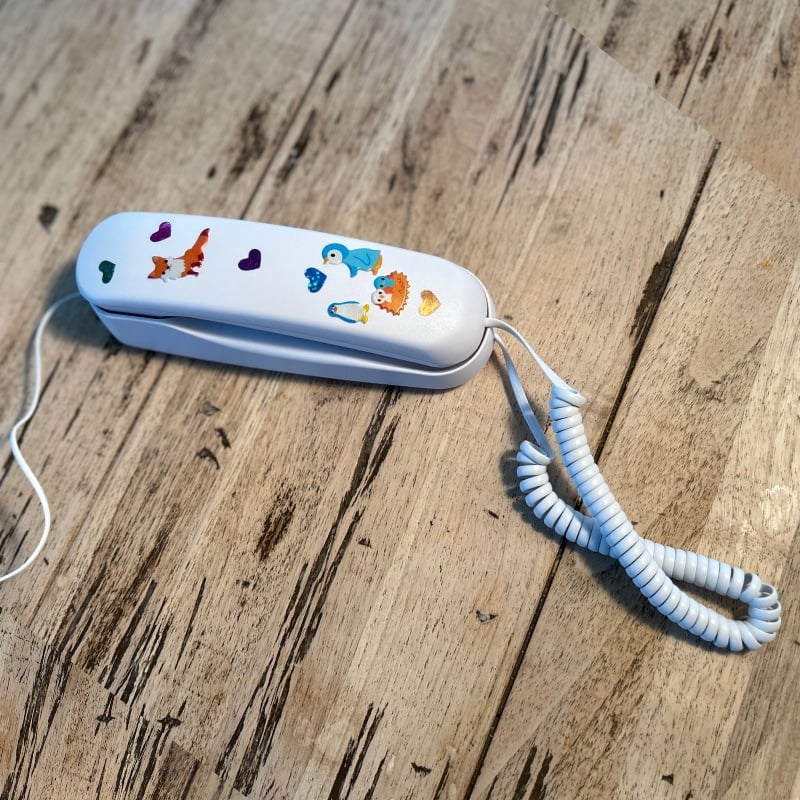
Get out the sticker sheet and give your Pinwheel Home some personality!
Customize your Pinwheel
One of the great things about Pinwheel is you can customize the settings to fit your child now, then add features and apps as they gain responsibility. See how below!
Contacts
The default, Caregiver-Managed Safelist, is usually the best starting setting. Your child can only call and text with contacts you approve, and you can limit the times of day each contact is available. When your child is ready, they can manage their own contact safelist.
Tips + Tricks
Set permissions for image texting for each contactAllow your child to do group texting, or not.
Groups can be created to easily schedule when contacts are available (i.e. School, Friends, Team, etc
Emergency Contacts are always available!
Apps
Most apps in the world have hidden access to the web, adult content, social media, and other elements that may not suitable for your kid.
Pinwheel investigates apps in our App Library thoroughly. We block the loopholes we can block, and we give in-depth safety ratings so you can make informed decisions about apps to approve.
To download an app to your child's device, click on Apps on the menu in Caregiver Portal, browse and read the information, then click Install. Clicking Manage allows you to decide when the app will be available.

Schedules
Scheduling lets you allow different things on your child's phone at different times. Schedules are daily templates made up of Modes. Modes allow for apps and contacts to be enabled and disabled as a group.
For example, Bedtime Mode might allow only an alarm clock and music player (emergency contacts are always available). The Schedule might show Bedtime Mode ON from 9pm - 6am.
Create Modes
Use the Create Mode button to build a mode from scratch, or edit an existing mode
Select the apps and contacts your child can access in that Mode
Use the Daily Schedules section to insert Modes into a timeline.

Create Daily Schedules
Daily Schedules are made up of Modes.
Use the Create Schedule button to build a daily schedule from scratch, or edit an existing dayClick on an existing Mode on the timeline (i.e. Everything Mode) to choose when it should begin and end.

Assign Daily Schedules to Calendar Dates
Daily schedules can be assigned to different types of days (e.g. school days, weekends, holidays, etc.). In the calendar section, click the drop-down to apply a different saved schedule to that date; repeat as needed.

Temporary lockdown
The "Schedule override" switches: Temporary Lockdown and Temporary Allow All allow you to change the state of the phone quickly.

GPS location notifications
To receive notifications when your child departs or leaves a place, like home or school, set that place up as a Saved Location and turn on notifications.
On the dashboard, click Saved Locations and Add New. Find the address, set the radius and notifications preferences (how often to send them, etc.).